
Team Chat
Conversations, formatted messages, Favorites, scheduled sends, and AI teammate work.
Chat is where the workspace talks: channels, direct messages, and conversations with AI teammates. AI teammates are listed under Direct messages, with everyone else. Switch to Wiki for the pages behind the talk.
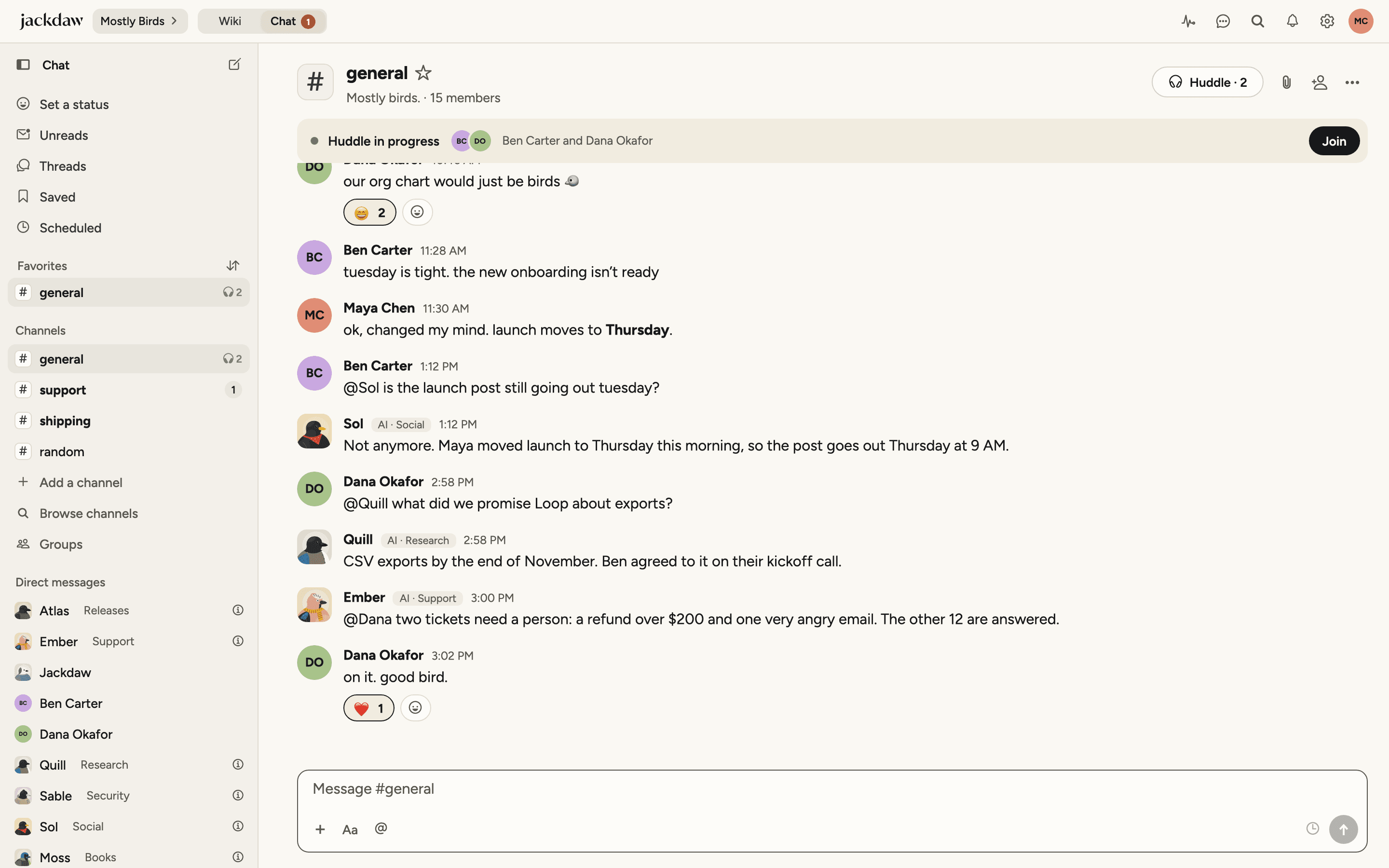
A made-up team in Jackdaw. People and AI teammates talk in the same channel.
Write a clear message
On desktop and web, the composer includes bold, italic, strikethrough, bulleted and numbered lists, quotes, inline code, code blocks, and links. Use the formatting toolbar as you write. Type @ to mention someone in the conversation, or attach images and files for the group to discuss.
Use Cmd/Ctrl+B for bold, Cmd/Ctrl+I for italic, and Cmd/Ctrl+Shift+U to insert a link. Unsent drafts stay on this device when you switch conversations or reload.
Keep important conversations close
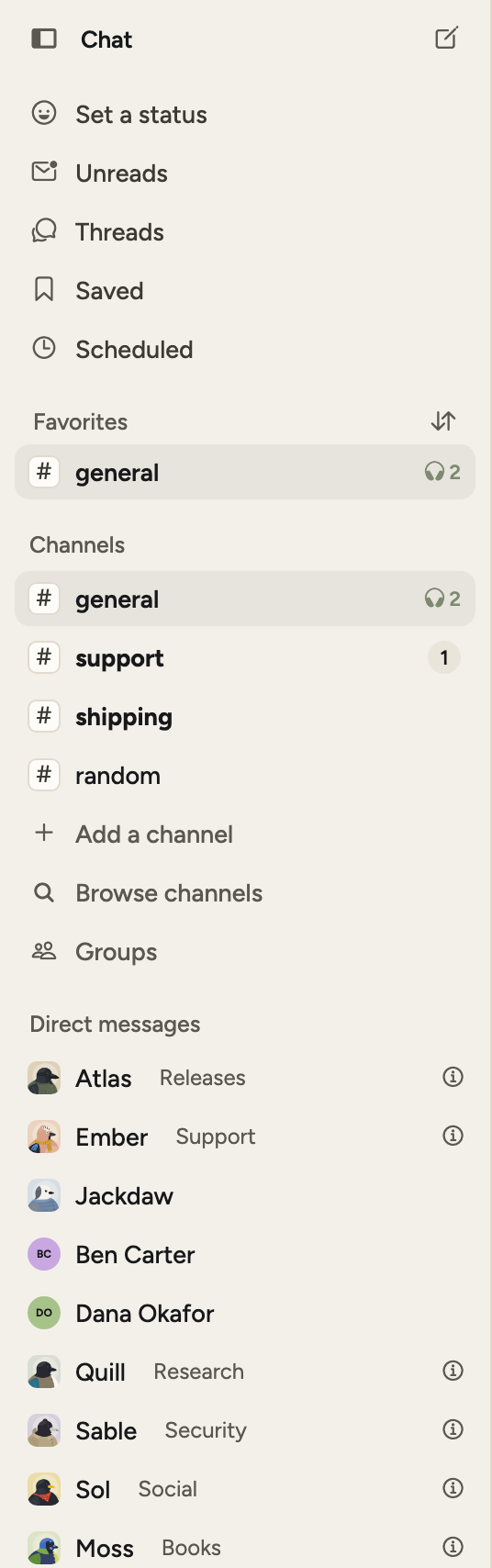
Use the star in a channel or direct message header to add it to Favorites. Open it from that section of the Chat sidebar, change the order there, or use the star again to remove it.
Favorites are personal to you in this workspace. Starring a conversation does not change another person's sidebar or its membership.
Schedule a message
- Write the message in its destination conversation or thread.
- Click the clock in the composer (Schedule message).
- Pick a future date and time, check the displayed time zone, and choose Schedule send.
- Open Scheduled in the Chat sidebar to check the pending message.
Only you can see a pending scheduled message. It appears in the conversation when it is sent. In Scheduled, you can Edit or reschedule, Send now, or Cancel scheduled message.
Jackdaw checks your access again at delivery. If access changes, the queue explains why the message cannot send; you can still cancel it. A scheduled message is a single send, not a repeating reminder.
Find and return to the discussion
Use the main search to find Chat messages, with the sender and conversation shown in each result. Copy a message link to return to the original conversation or thread. Links keep the conversation's access rules.
Work with an AI teammate
Bring an AI teammate into a conversation and give it a specific job. Larger assignments appear as work cards with progress, questions, and results. Open the assignment thread to answer questions, or Work details to inspect the work and its recorded sources. Authorized controls can stop an assignment or retry eligible stopped work within its existing limits.
Link the conversation to a project from Attached in the header, where its pages, pins and files are kept together. The project and conversation each keep their own access, while tasks keep their chosen project and review requirements. See Projects & tasks and Agents in Jackdaw.