
Projects & tasks
Connect a project to its conversations, assign work, and review the result.
A project page keeps the brief, related Wiki pages, conversations, and tasks close to the work. Use it when a plan needs owners and follow-through as well as notes.
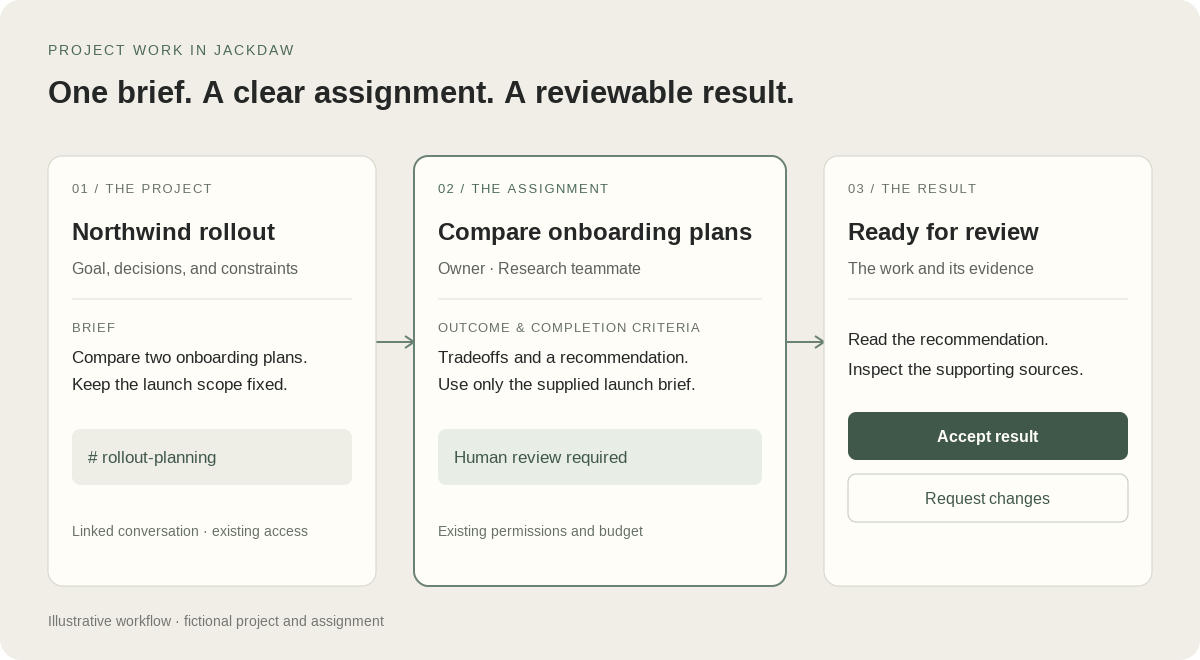
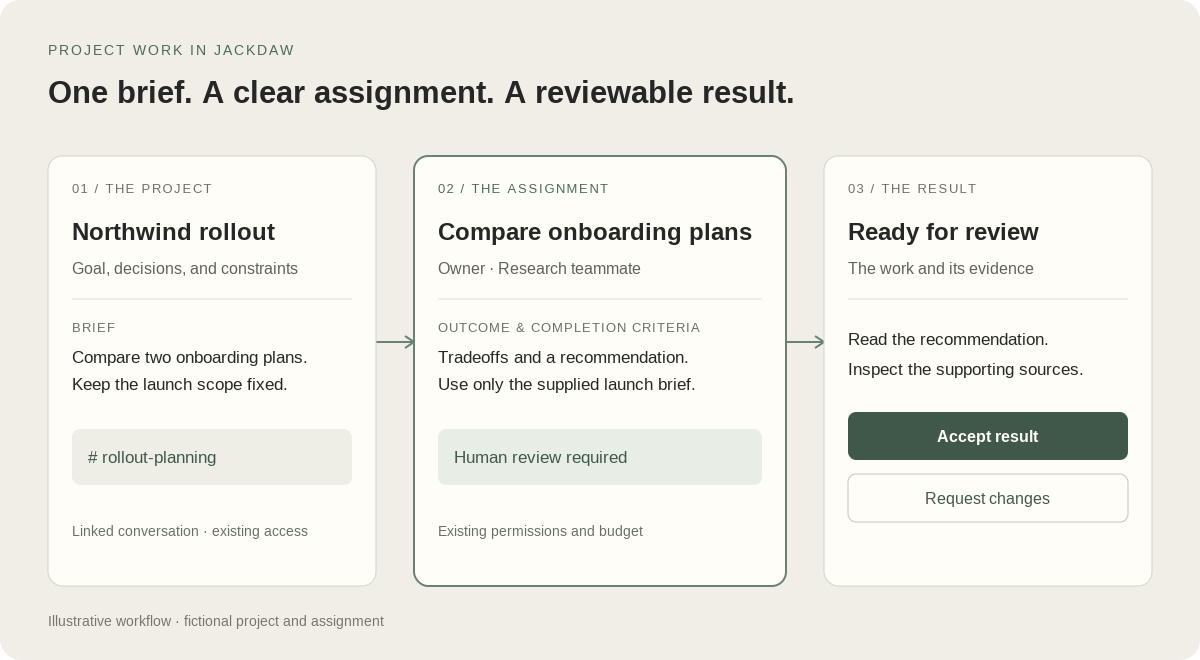
Illustrative workflow with a fictional project and assignment. Open the full illustration.
Connect the conversation
Open a project in the Wiki and find its conversation links. Choose Link existing conversation to select one you can access, or New private conversation to start one. A new conversation starts with only you; add people or AI teammates through its conversation controls.
You can also start from Chat. Open Attached in the conversation header, then choose Link existing project or New project page. A new project page starts private; share it separately when ready.
Linking keeps each page's and conversation's existing access. It does not grant everyone in a channel permission to read a private project, or everyone on a project access to a private conversation. A project can link to several conversations, and a conversation can link to several projects.
See the work across the project
The project's Work section brings together tasks assigned to that project, including tasks from Wiki pages connected to it. Use its views to find:
- Current work — open tasks and assignments.
- Needs attention — work that needs input or is blocked.
- Ready — results waiting for review.
- Completed — finished tasks.
Choose Add task to create work from the project, or open an existing task. Open in wiki returns to its source page. A task keeps its chosen project even when its conversation links to other projects.
Give the task a finish line
Open a task and choose Edit outcome and review. Write the desired outcome and completion criteria. For example:
Compare the two onboarding directions using the launch brief. Include the tradeoffs and a recommendation. Use only the supplied brief; leave the final choice to Maya.
Turn on Require human review if someone should accept the result before the task is complete, then Save task plan. Add prerequisites when another task must finish first.
Assign the task to a person or an AI teammate. Assigning it to an AI teammate starts work within that teammate's existing permissions and budget; it does not add tools or source access. See Agents in Jackdaw.
Follow progress and review the result
Open the task to inspect its plan, questions, progress, and result. When work appears in Chat, its work card keeps the assignment and its thread together. Answer a question in that thread so the reply stays attached to the assignment.
For tasks requiring human review, an authorized reviewer can Accept result or leave a note and Request changes. A result ready for review is still waiting for that decision. A completed prerequisite does not approve a separate action such as sending a message or submitting a form.
Start with one real project
Follow Build a project page your team can use to write the brief, connect its conversation, and assign one small piece of work.